Troubleshooting
App crashes or doesn't load episodes
- Check your internet connection — Episodes need to be downloaded or streamed
- Clear app cache — Settings → Apps → Strollcast → Storage → Clear Cache
- Update the app — Make sure you have the latest version
Taking Notes
The Strollcast app allows you to take timestamped notes while listening to episodes. Notes are saved with the exact playback position, making it easy to return to important moments later.
How to Take Notes
- While playing an episode, tap the Notes tab at the bottom
- Tap the + button to create a new note
- Type your note and tap Save
- The note is saved with the current playback timestamp
Viewing and Managing Notes
- Tap any note to jump back to that moment in the episode
- Swipe left on a note to delete it
- Notes are organized by episode — Switch between episodes in the Notes tab
Clickable Transcript Links
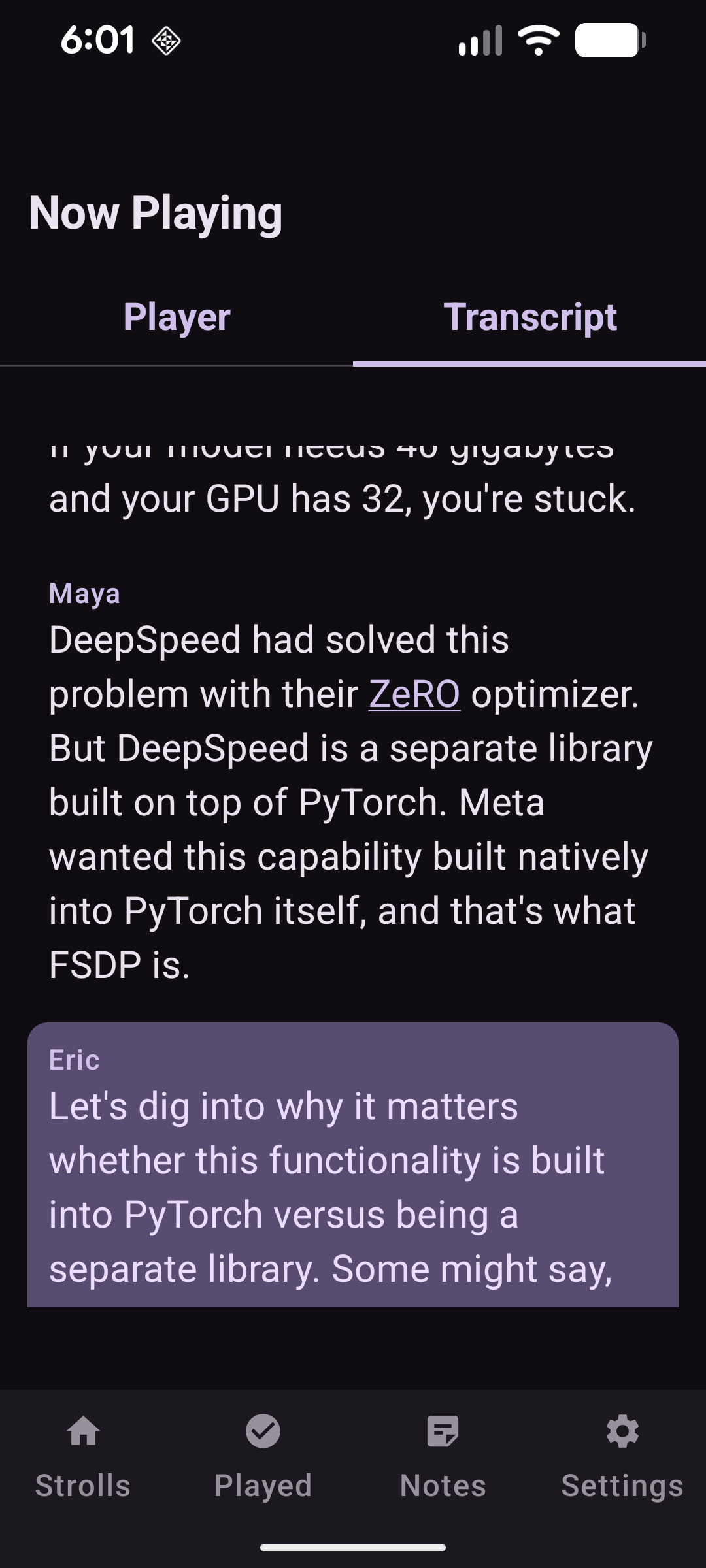
Some episodes include interactive transcripts with clickable links to referenced episodes or papers. When you see a link in the transcript, you can tap it to navigate directly to the referenced content.
How to Use Transcript Links
- While playing an episode, scroll through the transcript (if available)
- Links appear as blue underlined text in the transcript
- Tap any link to open the referenced episode or external resource
- For episode references, the app will automatically load and start playing the referenced episode
Help with Testing
We're looking for testers to help improve the Android app. Join our testing community to get early access to new features and help shape the app's development.
How to Become a Tester
- Join the testers group — Sign up here
- Download the app — Get it from Google Play
- Use the app for 2 weeks — Try out all the features and provide feedback
More Help
For additional support or to report issues, visit our GitHub Issues page.